WooCommerce And WordPress Featured Video
Thank you for purchase. If you have any questions that are beyond the scope of this help file, please feel free to send a message on the link.
Installation
How to install
Make sure you extract downloaded file from codecanyon, inside you will find file named: 'apfvp.zip'. This is the plugin file you upload in wordpress panel!
Activate plugin
After you install plugin you will have to activate your license to start using the plugin.
To activate license you need to create account on the following link, where you will provide your PURCHASE CODE, and get TOKEN in return which you will then enter in plugin section to activate the plugin.
This is made to make sure customers use the license on a single project (as per Envato rules) and to help customers owning many licenses to easily track on which server licenses are being used.
How to update
1. Using FTP client, delete old plugin files and upload new ones. Clear browser cache.2. Your previously created data is going to be saved.
Intro
With this plugin you can add video (or audio) to your featured images in WordPress and products in WooCommerce.
These videos can play on hover or a click.
You can also set url link or set link to image, video or iframe which will open in lightbox popup window.
To play video on hover, recommended usage would be having short videos, encoded for the small filesize (so the can load quickly on hover).
Video will not be loaded until mouse enters image area. Then if you want to display high resolution video, you can open full resolution video in lightbox.
Quick usage
Quick setup for WooCommerce Shop or single product page
1. Deactivate any plugins you have that do that same function (create videos in WooCommerce pages) because of possible conflict
2. Use default settings in our plugin (dont change any plugin options for start). By default plugin will show videos Shop or single product pages
3. Add videos to your products in edit Product pages
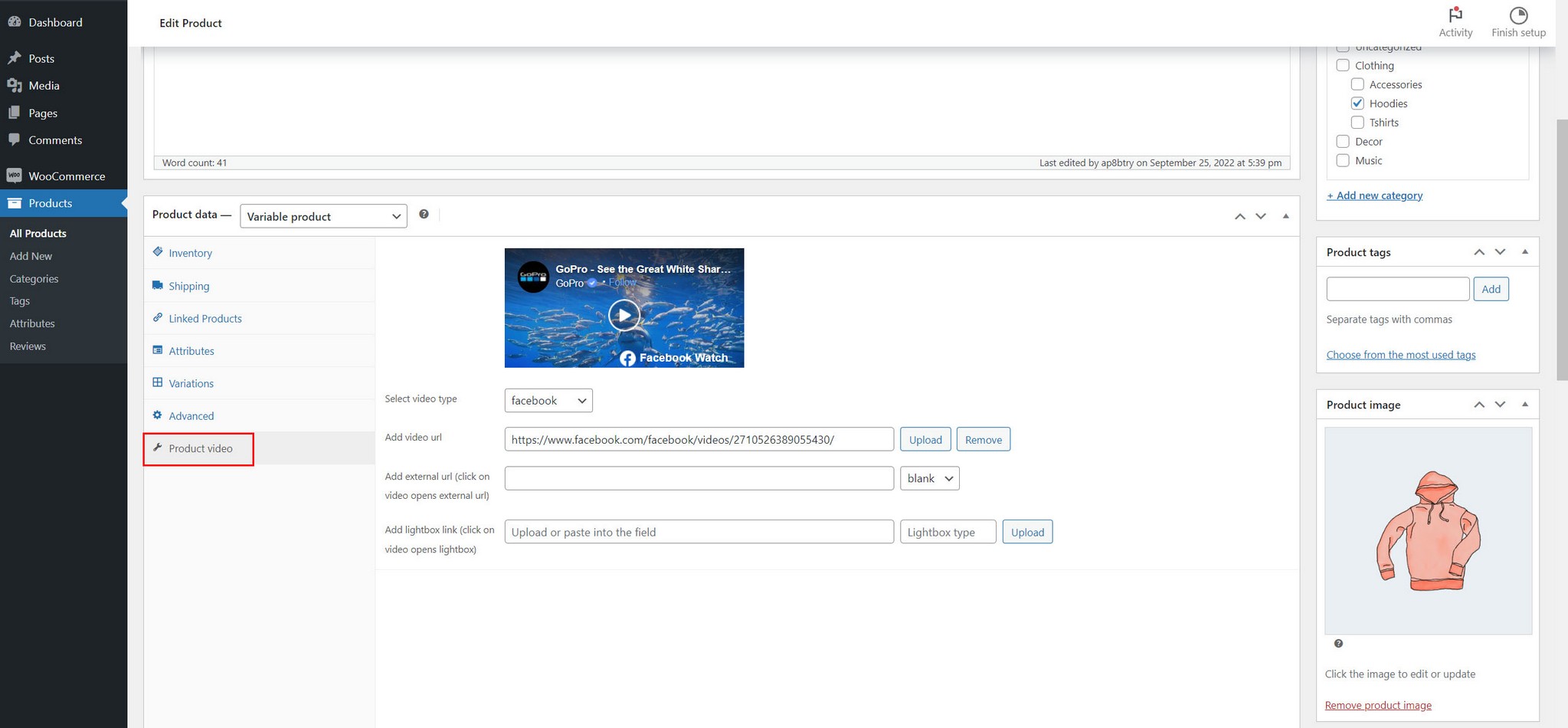
4. Test with Wordpress default theme (just to confirm its working!) before trying the theme you actualy use.
Audio and video playback
Video playback
There are 2 ways to start playback on desktop browsers (hover and click).
Note that for a video to start playing on hover (without any previous user interaction with the page like a click or keypress), its necessary for videos to be muted (plugin will auto mute videos!).
If video playback is started with a click, then videos can have volume.
Audio playback
For audio to start playback on hover, user needs to interact with the page beforehand! Otherwise its not possible for audio playbck to work on hover!
If your application requires hover for audio (instead of click), maybe you can implement some kind of popup window where user has to click to close, so interaction wih the document has happened before user starts browsing the page.
WooCommerce product video
WooCommerce product videos can be shown in Shop page, single Product page, or a Cart page.
1. Display video in Shop page above product image:
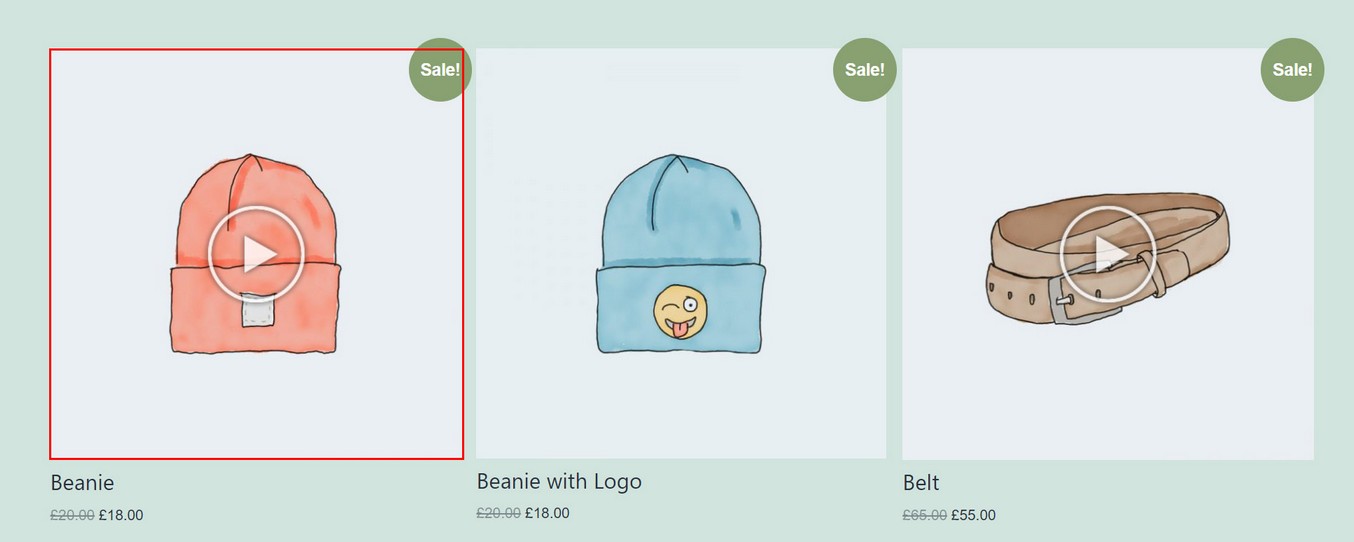
Use following settings:

2. Display video in Shop page in a tooltip which is shown when user hovers "Preview" button:
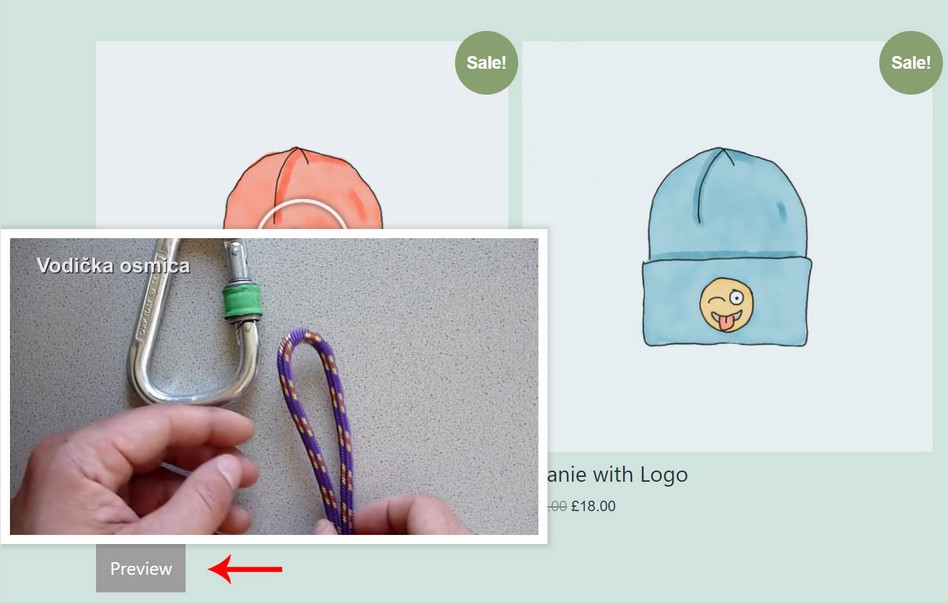
Use following settings:

3. Display video in Shop page in a popup which is shown when user click "View more" button:

Use following settings:
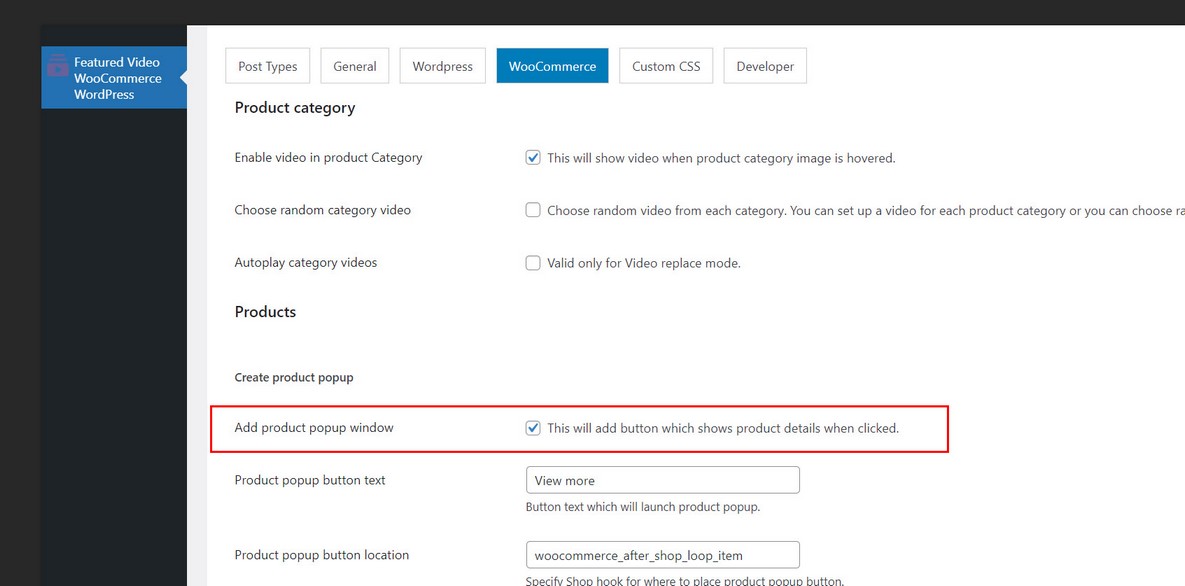
You can choose the location of the preview / popup button by specifing a different Shop hook https://www.businessbloomer.com/woocommerce-visual-hook-guide-archiveshopcat-page/
4. Display video in Shop page in a lightbox which is shown when user clicks custom icon over product image:
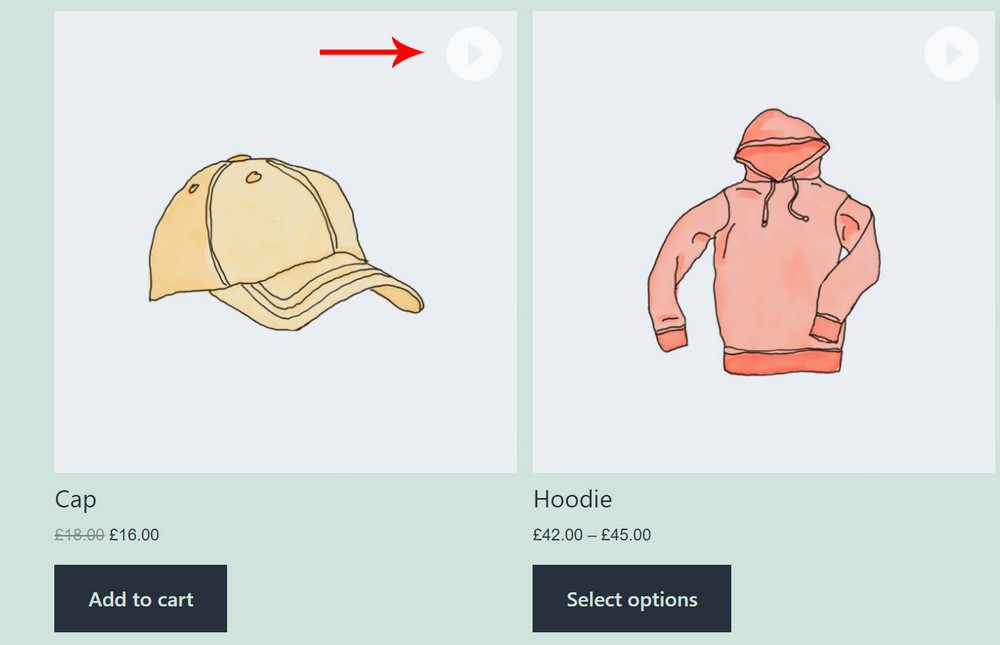
Use following settings (and upload custom icon):
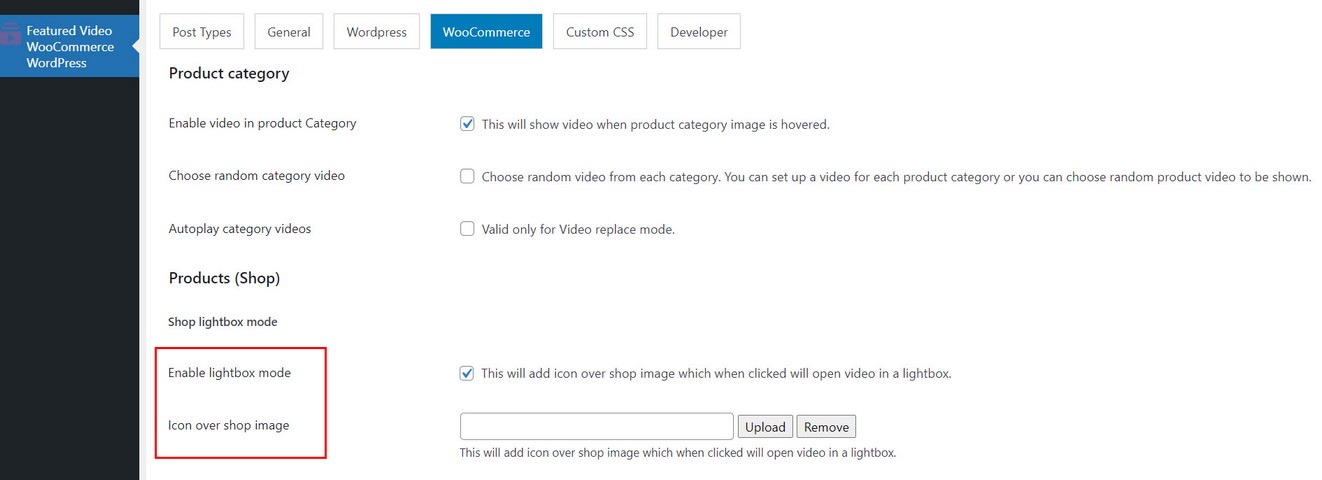
Icon is positioned with CSS so you can change this in wp-content\plugins\apfvp\source\css
How to add product video in Shop page?
In Product edit screen, set featured image, then add product video:
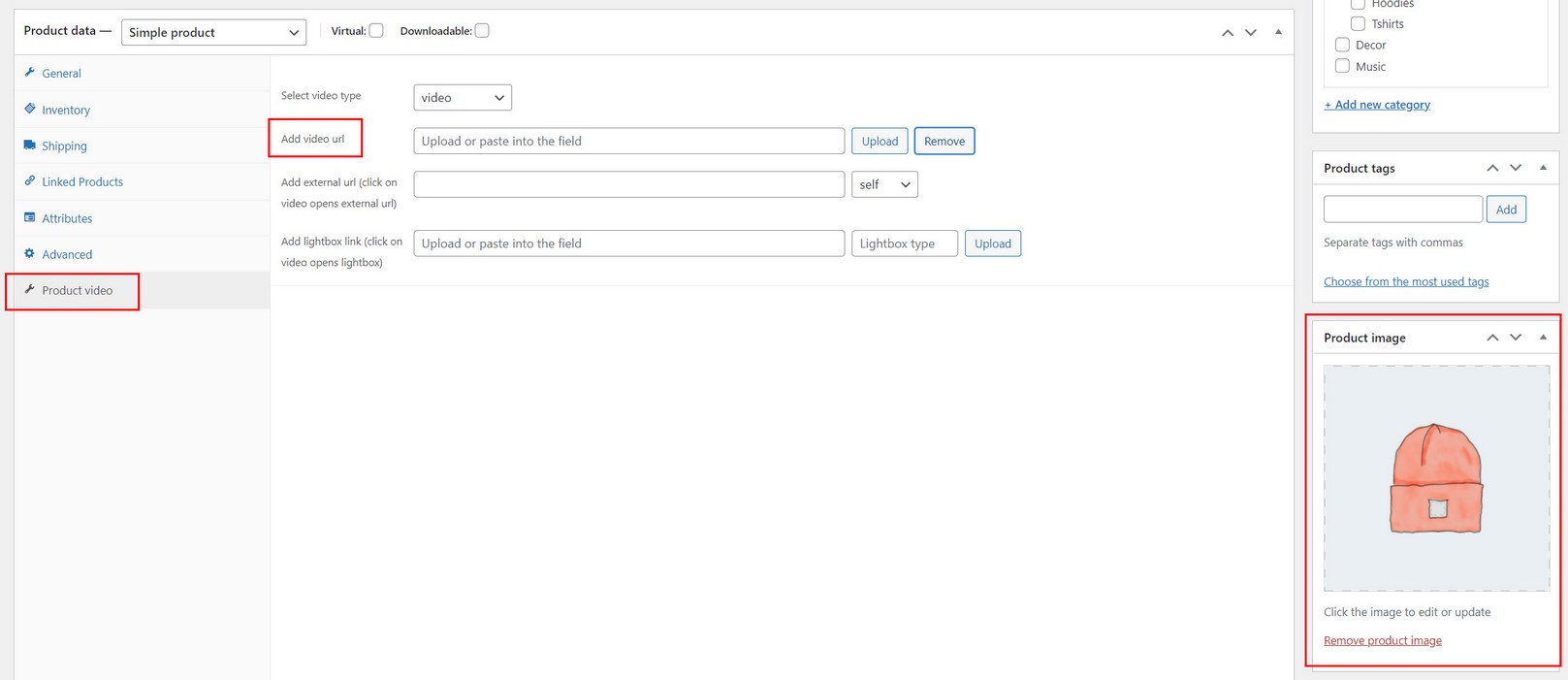
Optionally if you have additional product images, you can set featured videos for each additional product image:
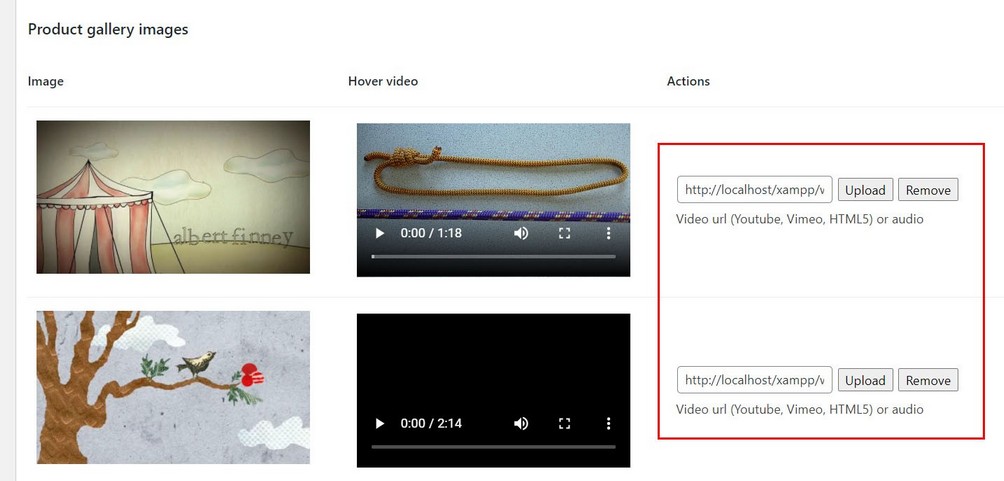
Video tutorial:
WooCommerce product category video
How to add product video to Shop page with categories?
When adding / editing category you can set featured video:

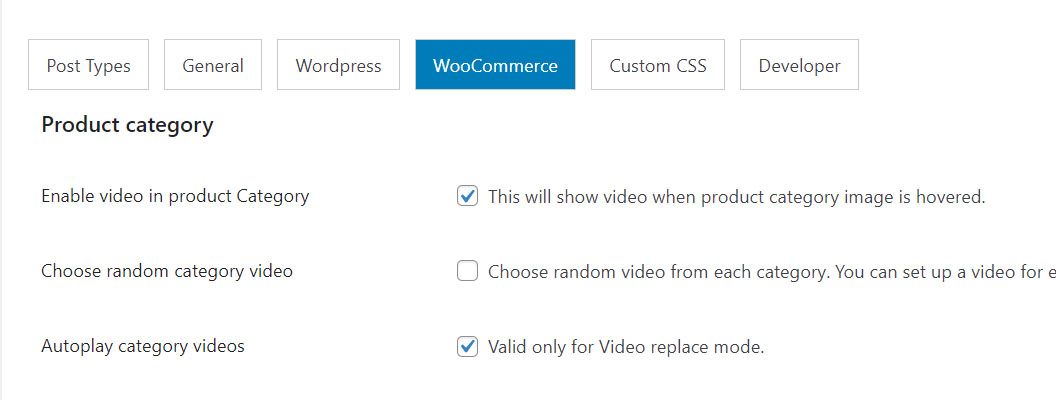
Then you can enable product videos to be shown in category page:
Video tutorial:
WooCommerce single product page video
How to add product video in single product page?
Enable product video for WooCommerce product page:

1. If your theme has option to use WooCommerce default product gallery, try selecting this option if possible in your theme settings to see if featured video works in product gallery as intended. (this should work for themes like Avada, Divi, BeTheme)
2. If the above does not work in your theme as expected, try alternate product gallery video settings: (this should work for themes like Salient, theGem, Porto, Jupiter)
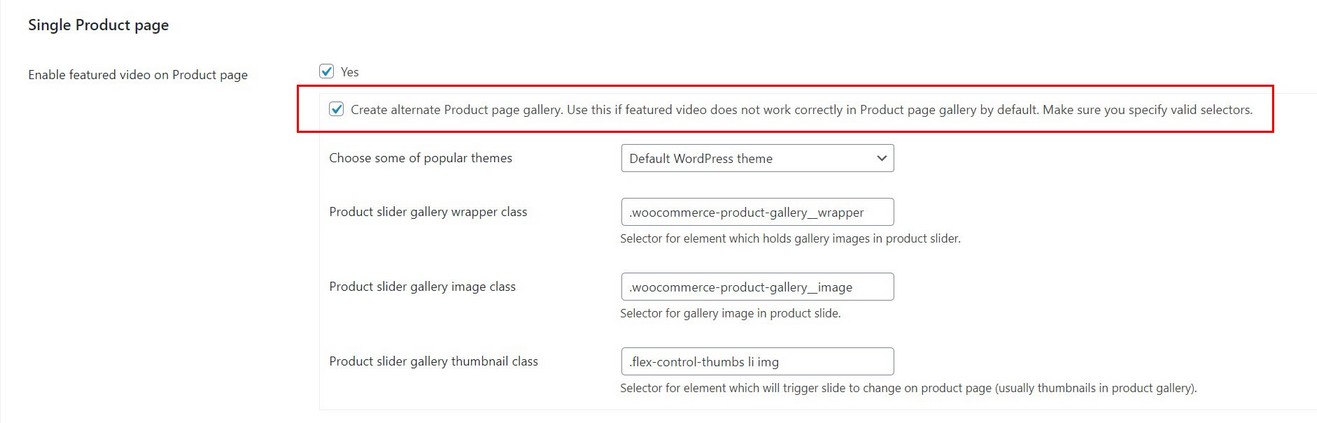
If the theme you are using is not listed here, send a support message at http://codecanyon.net/user/Tean#contact so we can try to make it compatible with your theme.
Video tutorial:
Custom add to cart
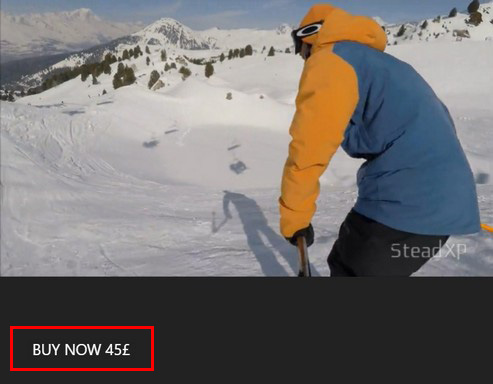
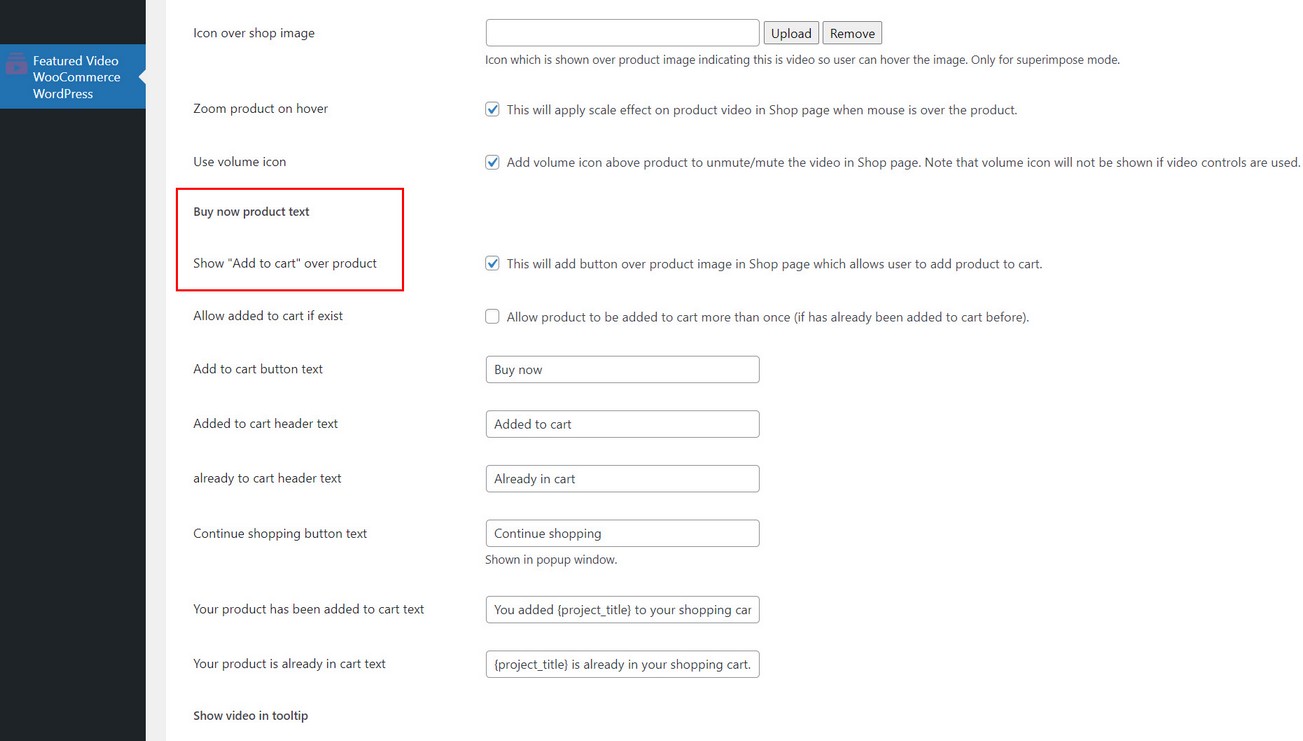
Display custom "Buy now" button text over product image (which adds product to cart when clicked):
Use following settings:
When buy "Buy now" is clicked, this will provide following popup window:

Gallery Slider for WooCommerce
This plugin is compatible with Gallery Slider for WooCommerce
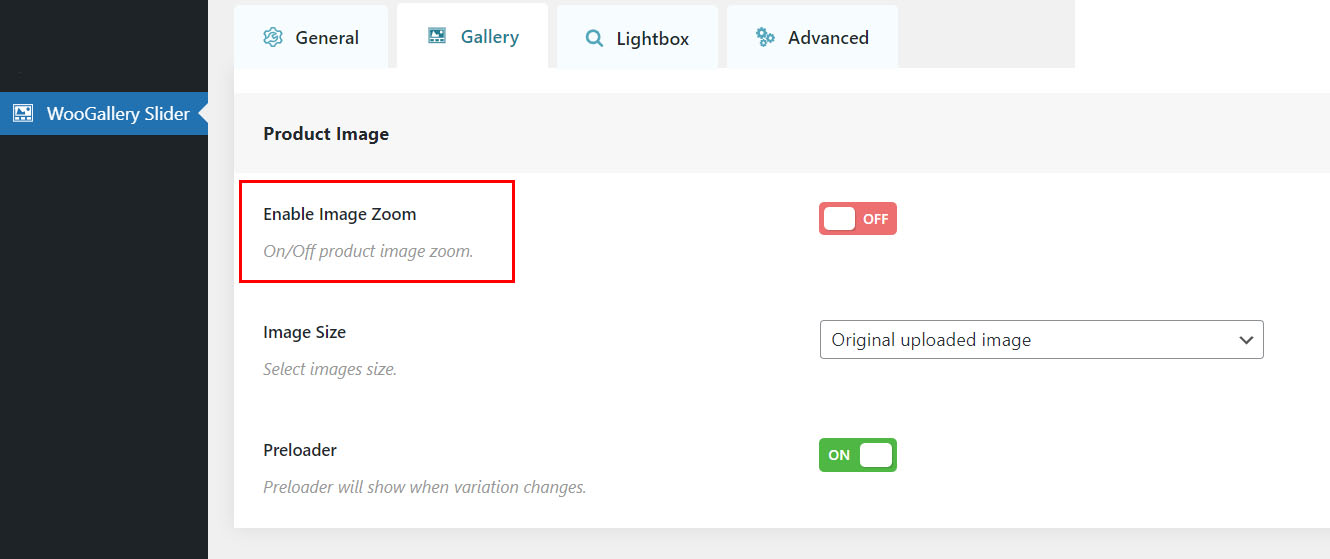
1. To make this work turn off gallery zoom inside Gallery Slider for WooCommerce
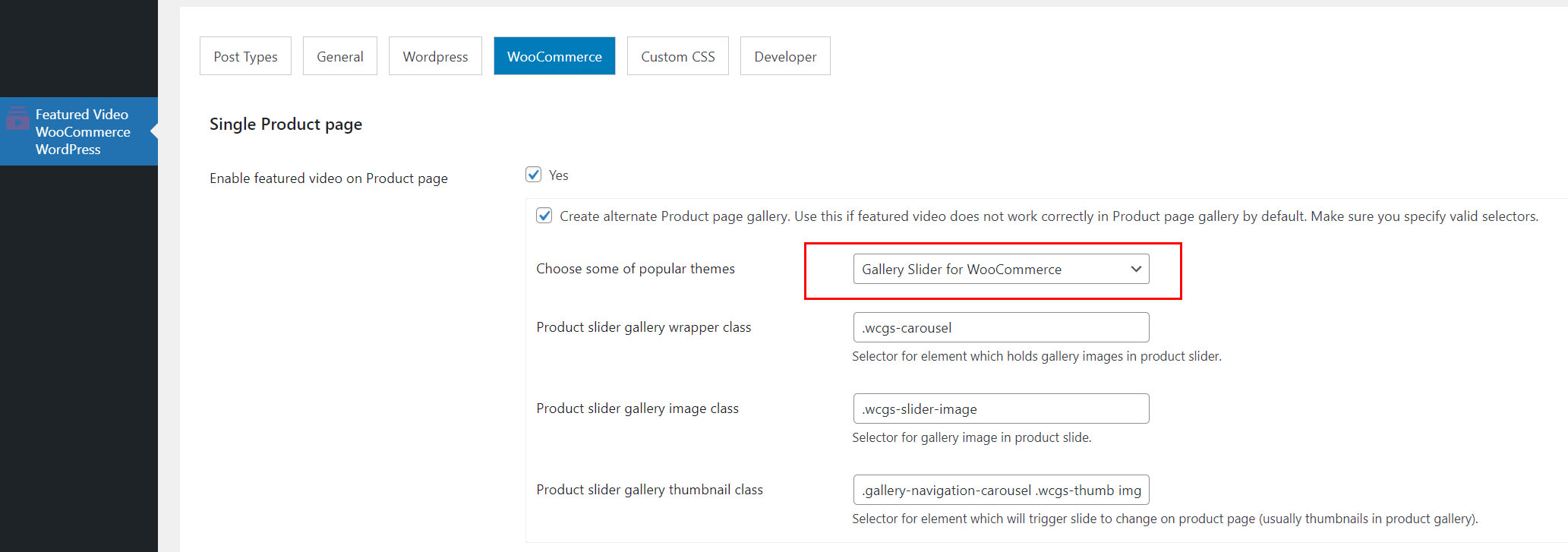
2. use these settings in our plugin for single product page:
Using in non WooCommerce page
If you want to activate audio players in non WooCommerce page use the following option:
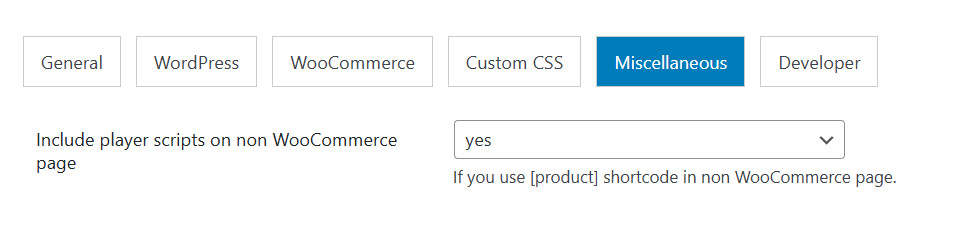
This will make sure this it works with a shortcode like the following:
[products category="accessories"]
[products ids="1972,1980"]
Product gallery with Elementor
How to create product gallery with Elementor?
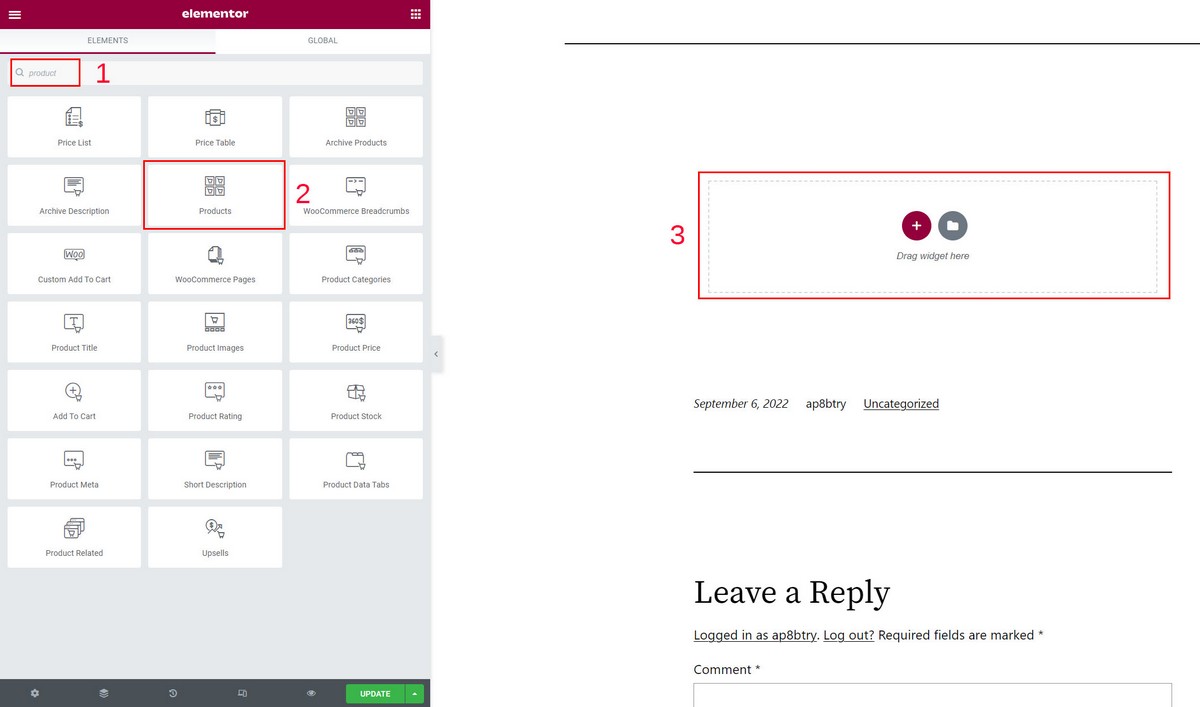
Using Elementor Pro, search for Products widget and drag it to the post. When you publish the page, your product videos that you have configured previously will be active like in WooCommerce Shop page.
Using custom shortcode
Player can be added to any page using custom shortcode:
[fvp product_id="1981"]
product_id = product ID (currently supports only single product per player)
Make sure you have activated player scripts if this is used in non WooCommerce page:
Using lightbox
When adding video to features image in WordPress or product videos in WooCommerce, you can also specify link which will open in lightbox.
This way (for example) you can have short preview video set as featured video (that will play when user hovers your featured image), and link to large video that will open in lightbox when clicked.
Lightbox used inside the gallery is fancybox: https://fancyapps.com/fancybox/3/docs/#introduction
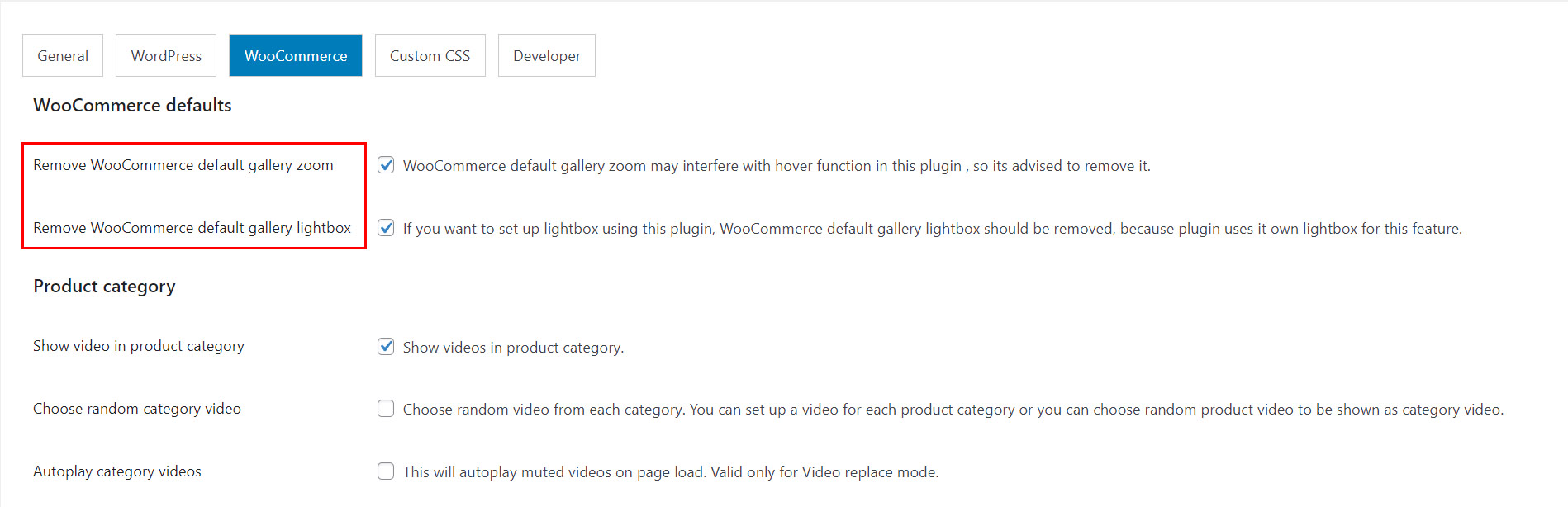
Before using this feature, first make sure WooCommerce default lightbox and zoom function is removed in Woocommerce default settings:
Add lightbox url in Edit product page in metabox:
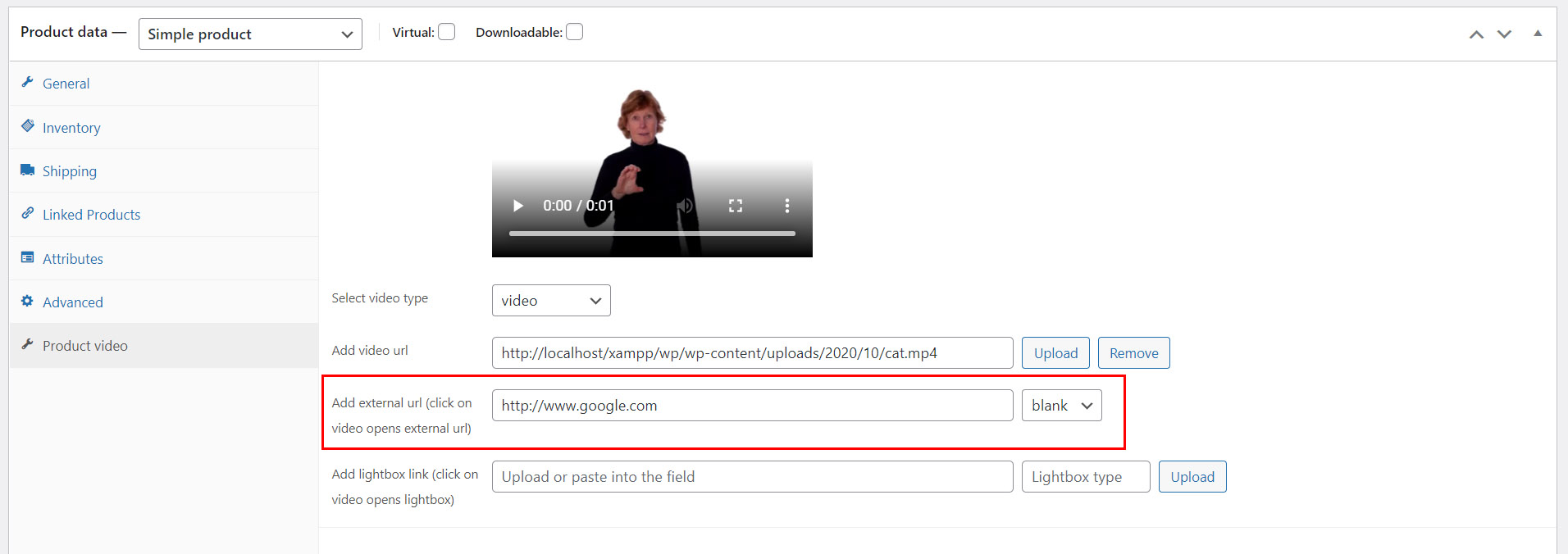
Different sources can be used for lightbox, for example: (add video ID in url in VIDEO_ID_GOES_HERE)
mp4 video

image

Youtube video, example: https://www.youtube.com/watch?v=VIDEO_ID_GOES_HERE

Vimeo video, example: https://vimeo.com/VIDEO_ID_GOES_HERE

any custom iframe src: (set type - iframe)

example Wistia video: https://fast.wistia.net/embed/iframe/VIDEO_ID_GOES_HERE

example Google maps: https://maps.google.com/maps?q=university of san francisco&t=&z=13&ie=UTF8&iwloc=&output=embed

Facebook video: https://www.facebook.com/plugins/video.php?href=https://www.facebook.com/watch/?v=VIDEO_ID&autoplay=1&allowfullscreen=true
If lightbox url is a custom iframe src like example above (Wistia video, Goggle map, Facebook examples above) then enter "iframe" inside lightbox type field.
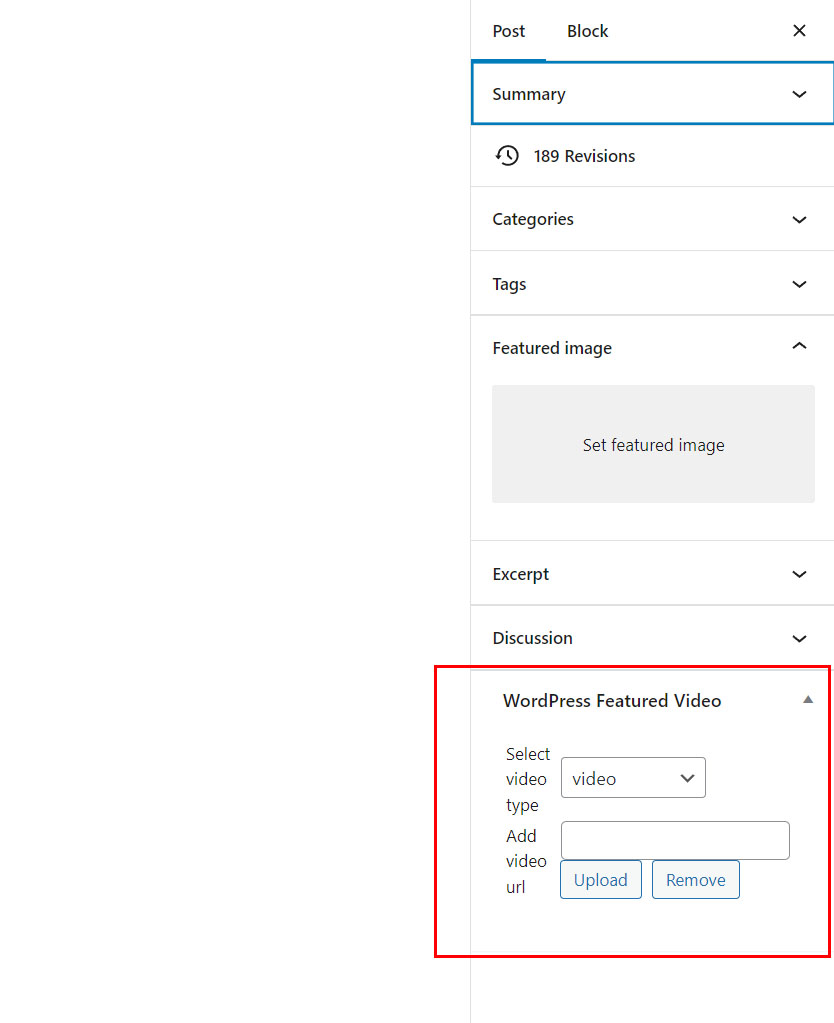
Replace Wordpress featured image
To replace Wordpress featured image in your website, on edit page find Wordpress featured image metabox and set your video there (save and update after adding video), which will replace Wordpress featured image.
CSS
Custom css for the gallery can be entered in Custom CSS tab.
Example of how to apply some css changes:
Change button background color:
.fvp-contr-btn{
    background: #ccc;
}
Import product videos
You can import product video in CSV using WooCommerce 3.0+ built-in importer.
To add custom meta in CSV file, add following headers in CSV file. Use the word meta: followed by featured video meta keys:

Parameters:
| Header | Required | Value |
|---|---|---|
| fvp_featured_type | yes | video, youtube, vimeo, dm, wistia, facebook, audio |
| fvp_featured_url | yes | video / audio url, examples: mp4 video Youtube video: https://www.youtube.com/watch?v=VIDEO_ID_GOES_HERE Vimeo video: https://vimeo.com/VIDEO_ID_GOES_HERE Wistia: https://fast.wistia.net/embed/iframe/VIDEO_ID_GOES_HERE Facebook: https://www.facebook.com/plugins/video.php?href=https://www.facebook.com/watch/?v=VIDEO_ID&autoplay=1&allowfullscreen=true Dailymotion: https://www.dailymotion.com/video/x6z9an9 audio url |
| fvp_featured_link | Add external url (click on video opens external url link) | |
| fvp_featured_target | External url target (_blank, _self...) | |
| fvp_featured_lightbox_url | Add lightbox link (click on video opens lightbox). Check lightbox section for more details. | |
| fvp_featured_lightbox_url_type | Lightbox type is auto detected (enter it manually if you have some specific type like iframe). Check lightbox section for more details. |
Example of CSV is included in plugin package / documentation / csv directory.
Troubleshooting
Videos dont show in page
Switch to default Wordpress theme to see if the videos are working in default Wordpress theme. If the videos work there but do not work in your theme, we need to know which theme you use, so contact us with all the information and live page link where we can see the videos.
http://codecanyon.net/user/Tean#contact
Plugin does not work as expected
If the plugin does not work as expected, try the following tests to see if it makes a difference and what could be causing an issue:
1. Update to latest plugin files available on Codecanyon
2. Switch to default Wordpress theme
3. Check for errors in browser developer console (Chrome F12 key, Console tab)
4. Try to deactivate any 3rd party plugins (the ones that not come with Wordpress)
5. If you still have issues after you have done all changes above, you can send a message at http://codecanyon.net/user/Tean#contact , provide your PURCHASE CODE, provide a link to your live page, and a temporary user and password for your wordpress admin panel so we can have a look.
Contact
How to contact us?
If you have any questions after purchase, send a message at http://codecanyon.net/user/Tean#contact, and provide your PURCHASE CODE.